
Meeting notes
Keep your own notes, the live transcript, and an AI summary together. Mute your mic in Kimiko, turn on live summaries, and add names to speaker labels.
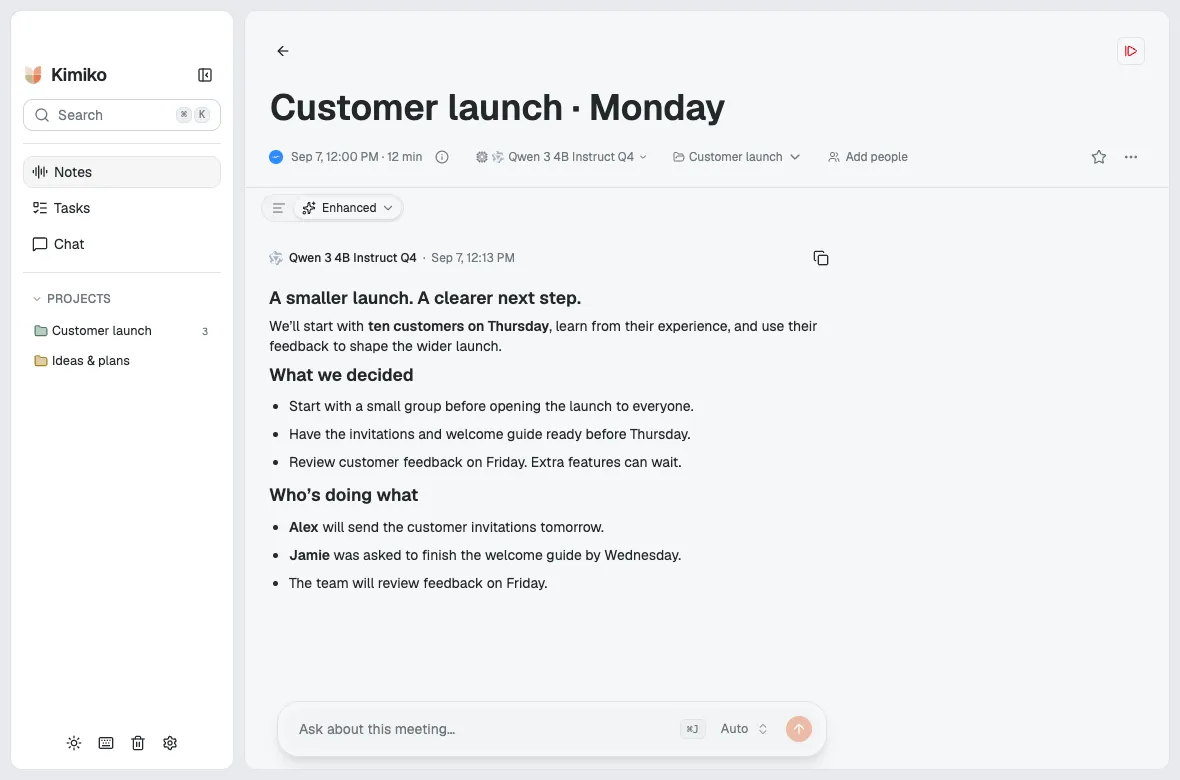
Three views of the same conversation
Section titled “Three views of the same conversation”- Your notes hold the things you choose to write down.
- The transcript captures the spoken conversation.
- The summary brings the key points together with AI.
Use your notes for the details that matter to you. Use the transcript to check wording and the summary to catch up quickly.
Mute your mic in Kimiko
Section titled “Mute your mic in Kimiko”Need to speak to someone beside you while a meeting continues? Mute your mic in Kimiko to stop recording and transcribing your microphone. Kimiko keeps recording and transcribing the other side of the call through computer audio.
- Click the microphone button beside Kimiko’s recording controls. You can also click the microphone icon next to You in the transcript.
- Look for the crossed-out microphone and Muted beside You. The Them meter remains active when computer audio is playing.
- Click either microphone button again to resume recording and transcribing your voice in Kimiko.

Use Pause instead if you want to pause recording both your microphone and computer audio.
Live summaries
Section titled “Live summaries”Open Settings → Transcription → Live summaries to enable periodic recaps during recording and choose an interval.
A live recap covers part of the conversation. Review the completed meeting afterward for the broader picture. Summaries need a working AI model, separately from your speech model.
Speaker labels
Section titled “Speaker labels”Kimiko labels your microphone as You and can separate up to eight remote voices using an on-device speaker model. The required model files download separately.
Imported recordings, from a dropped audio file or a pasted link, get speaker labels too. An import has no microphone side, so everyone in it, you included, appears as Speaker 1, Speaker 2 and so on. When you import from a link, the Label speakers switch turns this on or off; dropped files follow the same choice. With Keep session audio on in Settings → Transcription, imports keep their audio like recordings, so Re-transcribe and Re-diarize work on them too.
Rename a speaker label when you know who it belongs to. If you choose Remember this voice, Kimiko saves a local voice signature that can help suggest a name in later meetings.
Labels are a useful starting point and can be wrong, especially when people interrupt one another. Several people sharing your microphone are not individually identified by the remote-speaker model.
Review and refine
Section titled “Review and refine”Use the document controls to move between your original notes and their enhanced version. When polishing or requesting another revision, compare the result and keep the version you prefer.
Check names, dates, numbers, and commitments against the transcript before you rely on or share a summary.
Turn notes into action
Section titled “Turn notes into action”Review suggested tasks and keep the ones you want to track. Group related meetings and notes into a project so you can ask questions across them.
When you need a copy outside Kimiko, export your notes.