
Install Kimiko
Download Kimiko for an Apple silicon Mac or a 64-bit Windows PC, check a Windows SmartScreen warning, and finish setup. Your free trial needs no payment card.
Choose your download
Section titled “Choose your download”| Computer | Requirement | Download |
|---|---|---|
| Mac | Apple silicon, macOS 14.4 or later | Download for Mac |
| Windows | 64-bit Windows PC | Download for Windows |
On Mac, open the downloaded disk image and move Kimiko into Applications. On Windows, run the downloaded installer and follow its prompts. Open Kimiko when installation finishes.
Planning to run models locally? 16 GB RAM is a practical starting point on Apple silicon Macs and Windows PCs with dedicated graphics. Larger models and Windows shared-memory laptops may benefit from more. Check the system requirements for recommendations by setup.
Windows SmartScreen warning
Section titled “Windows SmartScreen warning”You might occasionally see “Windows protected your PC” when opening the Windows installer. That can be an unsettling welcome, so here’s what it means and what to check.
Kimiko’s Windows installer is code-signed by Inovia AI Solutions LTD. The digital signature lets Windows verify who published the file and whether it has changed since it was signed.
Microsoft Defender SmartScreen also checks the reputation of the installer and its signing certificate. A new release or a certificate still building reputation may not yet have enough download history for Windows to recognize it. That means a validly signed app can still get an “unrecognized app” warning. Reputation builds as people download and use the app without reported problems; Microsoft doesn’t publish a guaranteed timeline for warnings to stop. Microsoft explains how SmartScreen reputation works.
The warning alone doesn’t mean a virus was found, but it’s still a good reason to check the file before continuing.
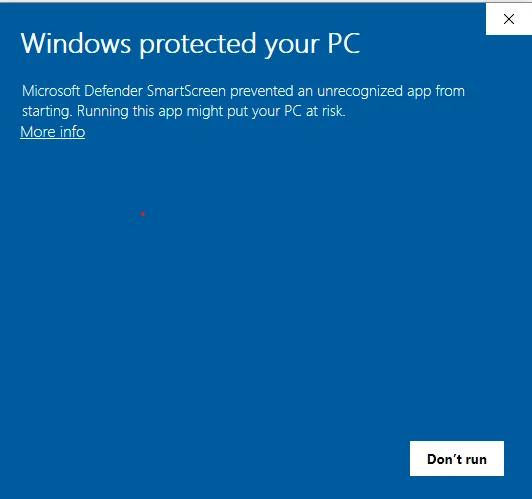
Example Windows warning, shared by _AW_ on Microsoft Q&A. This isn’t a Kimiko installation capture; the appearance may vary with your Windows version.
Check the installer and continue
Section titled “Check the installer and continue”- Make sure you used the Download for Windows link above or on Kimiko’s website. Our official downloads are hosted on
cdn.crabnebula.app. - Close the warning. In File Explorer, right-click the downloaded installer and open Properties → Digital Signatures. Select Inovia AI Solutions LTD, then Details, and check that Windows says “This digital signature is OK.”
- Open the installer again. If SmartScreen appears, choose More info and check that the publisher is Inovia AI Solutions LTD.
- If the source and signature match, and you’re comfortable continuing, choose Run anyway to start the installer.
You can leave SmartScreen and antivirus protection on. If Run anyway isn’t available, your work or school may restrict installations; ask your IT team. A message naming Smart App Control is a different Windows protection and needs separate help from your IT team or Kimiko support.
Complete the initial setup
Section titled “Complete the initial setup”- Enter the name you want Kimiko to use for your own contributions.
- Choose whether to share anonymous health signals. Sharing is optional and off by default.
- Follow the prompts for microphone and system audio access. See permissions if a prompt is missing.
- Download the speech model offered during setup.
- Choose the recommended built-in AI option for local summaries and chat, and let its downloads finish.
- Connect a calendar if you want to. You can skip this step.
Keep an internet connection available during setup. Local models download separately from the app and take additional disk space.
Your free trial
Section titled “Your free trial”Your trial starts with your first recording and lasts 14 days or 5 meetings, whichever lasts longer. No payment card is needed to start.
Optional cloud services can have their own charges, separate from Kimiko.
To keep recording after your trial, subscribe on kimiko.app. Your license key arrives by email and is always in your Kimiko account.
Have a license key? Paste it under Settings → License and select Activate. Your license, computers and subscription explains where to find your key, how to move to a new computer, and how to manage your subscription.
Next step
Section titled “Next step”Record your first meeting to check the complete workflow before an important call.